
Business Central Incoming Documents: Turning Supplier Invoices Into Purchase Invoices
Supplier invoices arrive by e-mail, as scanned PDFs, through portals and, increasingly, as structured e-invoices. In most AP teams, someone then keys the header, the lines and the VAT into the ERP. Business Central has a built-in place to catch those documents before they become purchase invoices: the Incoming Documents page.
This post explains how business central incoming documents work, what the standard flow from supplier PDF to purchase invoice looks like, and where AP managers usually hit the limits.
What Incoming Documents actually are in Business Central
A holding area, not a posting engine
An incoming document is a record that holds a file (a PDF, an image or an electronic document) until someone turns it into something Business Central can post. Microsoft's documentation lists the possible outputs: a purchase invoice, a sales invoice, a credit memo or a journal entry.
Nothing is posted just because a file lands on the Incoming Documents page. It is a staging area with a status, an attachment and a link to the document created from it.
Where files come from
There are three main routes in:
Manual upload. A user creates a record and attaches the file.
OCR service. A PDF or image is sent to an external OCR service, which returns an electronic document. Some OCR services also accept files forwarded to a dedicated e-mail address, and the incoming document record is created automatically when the processed file comes back.
Electronic documents. Structured files such as Peppol invoices, which carry the data already and need no character recognition.
From supplier invoice to purchase invoice: the standard flow
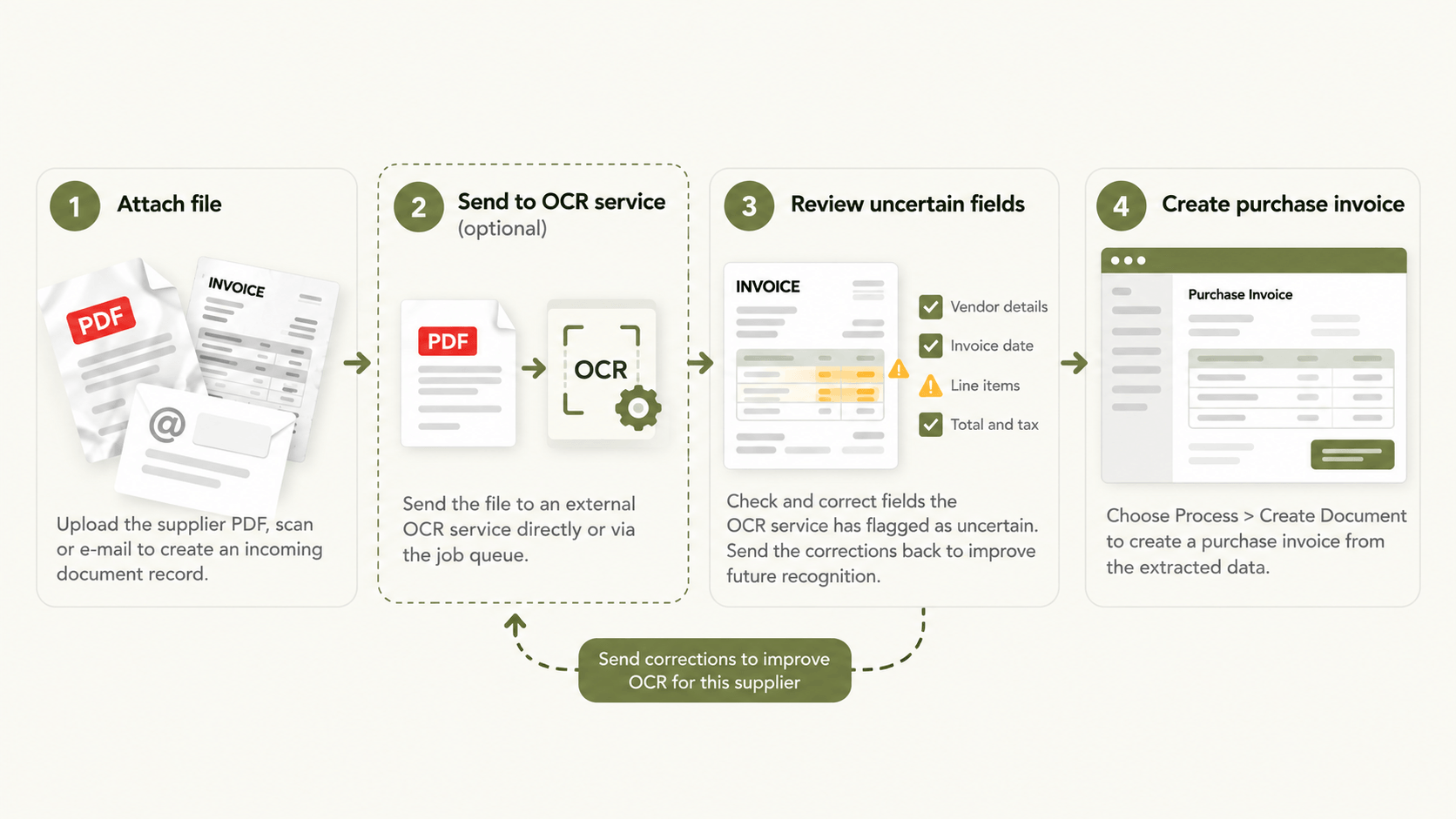
Step 1. Create the incoming document record and attach the file
Search for Incoming Documents, create a new record and attach the supplier's PDF. At this point you have an archived file and nothing more.
Step 2. Send PDFs to an OCR service (optional)
Business Central does not read PDFs on its own. You sign up with an external OCR service from Microsoft's marketplace and configure it. From the Incoming Documents page you then either use Send to Job Queue, which sends files on the job queue schedule, or Send to OCR Service to send them immediately.
Step 3. Review uncertain fields and correct them
OCR is not perfect, especially the first time it sees a vendor's layout. It may misread the logo as the vendor name or pick up the wrong total. Business Central lets you correct fields the service has flagged as uncertain and send the corrections back so the service learns that vendor's layout.
Step 4. Create the purchase invoice
Open the incoming document, choose Process, then Create Document. Business Central creates a purchase invoice from the data the OCR service returned.
The mapping work that decides whether lines come through filled in
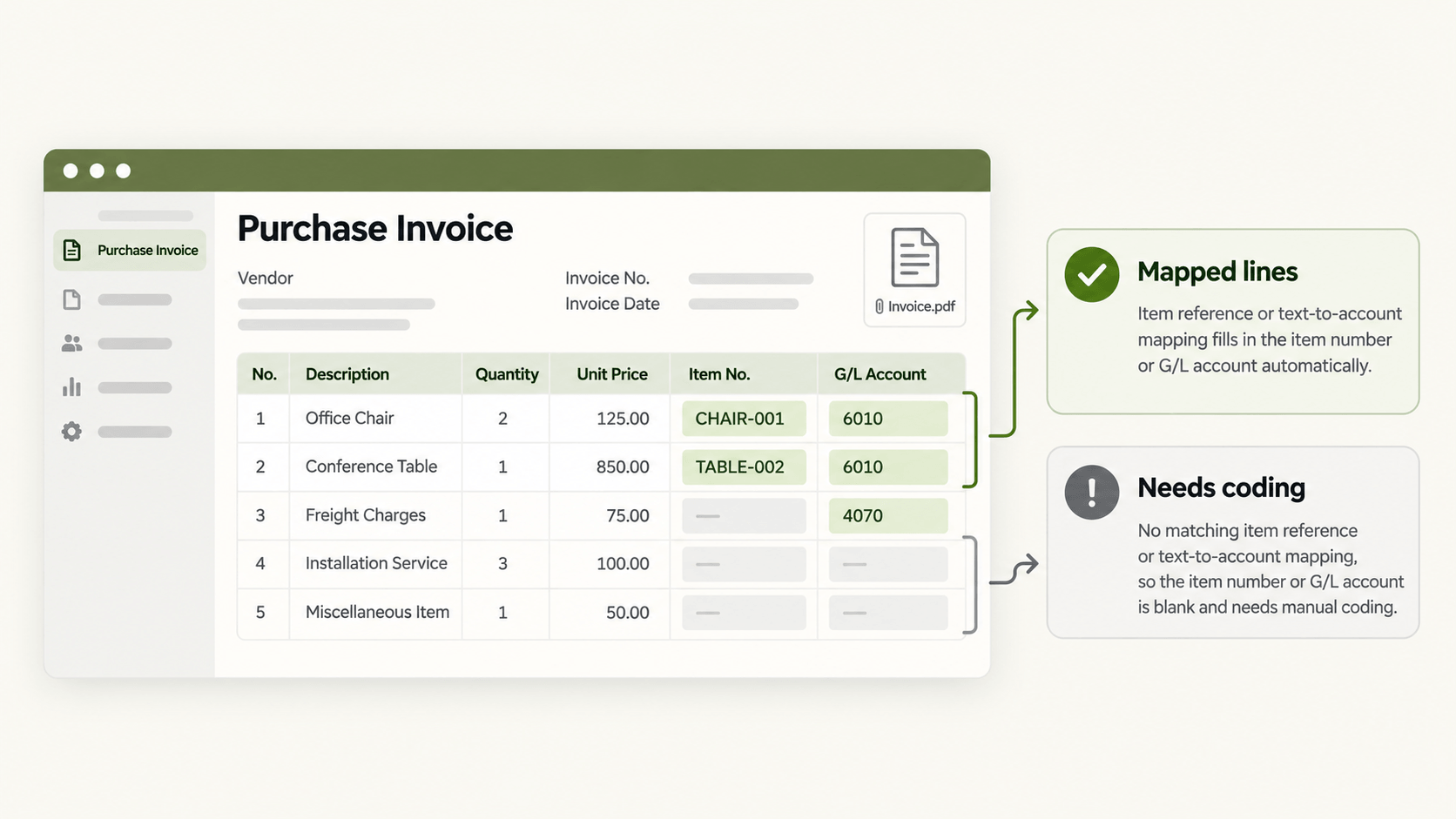
This is the part that often surprises AP teams. Creating the document does not mean the lines are coded. Microsoft's documentation is explicit: line descriptions and numbers are only filled in based on mapping you have set up.
Item references: matching vendor descriptions to your items
If a supplier calls a product something different from your item card, you need an item reference (called item cross-reference in older documentation) linking their description to your item. Without it, the line arrives without an item number.
Text-to-Account Mapping for G/L-coded costs
For overhead invoices such as utilities, freight and subscriptions, you use Map Text to Account. You define text that appears on the invoice (up to 50 characters), the vendor, and the debit and credit accounts to use. Set this up for recurring suppliers and those invoices arrive pre-coded.
Where the native process breaks down for AP teams
OCR accuracy on new vendor layouts
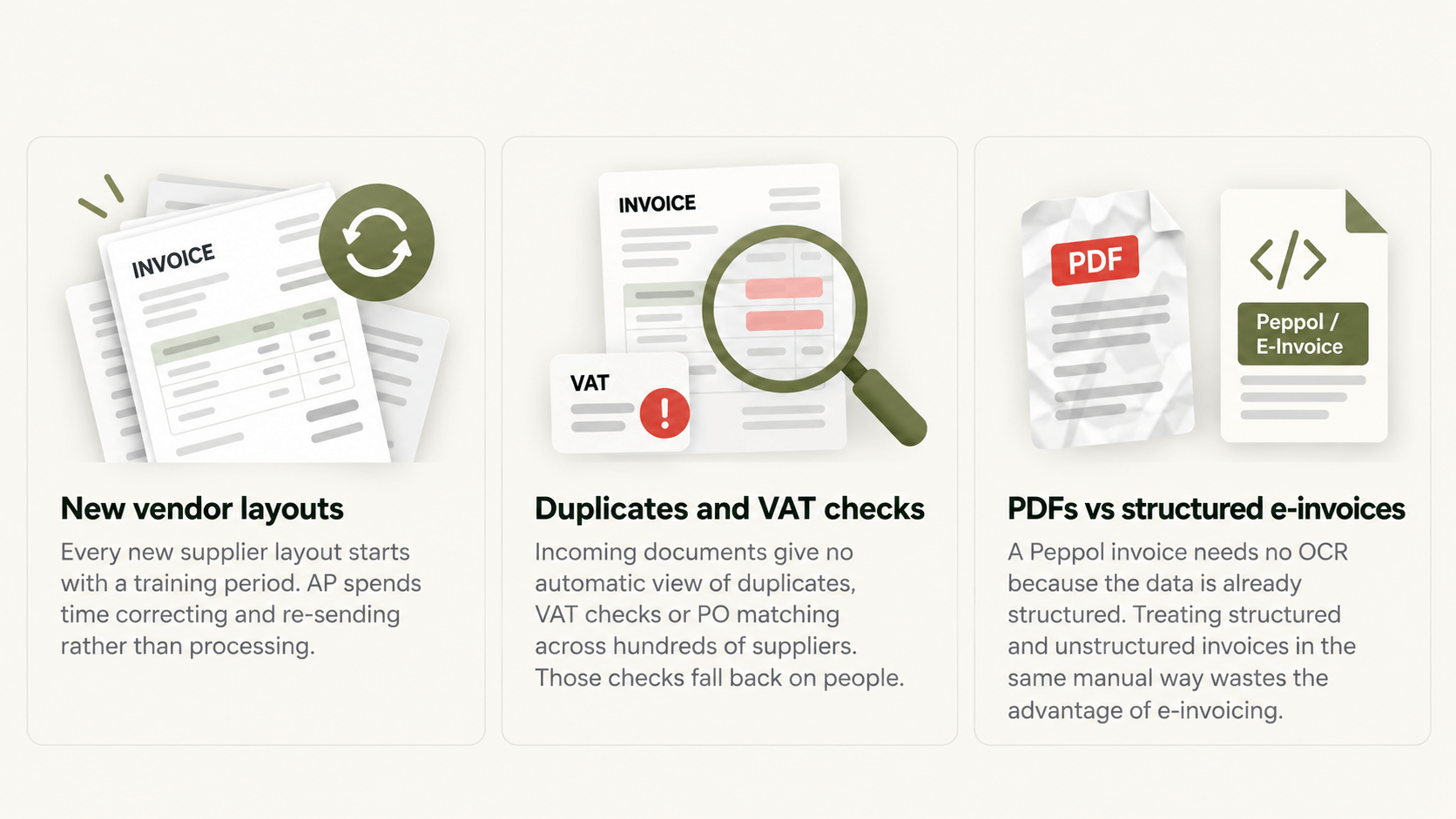
Every new supplier layout starts with a training period. With a long tail of suppliers, AP spends time correcting and re-sending rather than processing.
Volume, exceptions and approval bottlenecks
Purchase invoices created from incoming documents can go through Business Central's approval workflows. But the incoming document itself gives no view of duplicates, VAT checks or PO matching across hundreds of suppliers. Those checks fall back on people.
Structured e-invoices vs PDFs: two different routes
A Peppol invoice needs no OCR because the data is already structured. Treating structured and unstructured invoices in the same manual way wastes the advantage structured e-invoicing gives you.
Incoming Documents vs E-Documents: which one handles what
Since the 2023 release wave 2, Business Central also includes the E-Documents framework for sending and receiving structured electronic documents. For purchase documents it offers a one-step option, which creates the purchase document automatically, or a two-step option, where a user confirms before the invoice or order is created.
In practice, Incoming Documents is where files and OCR output live, while E-Documents handles structured formats and their lifecycle. We covered what the native E-Documents feature does and where it stops in Business Central E-Documents: What the Native Feature Covers and Where It Stops.
Adding an integration layer without replacing Business Central
You don't need a new ERP to reduce manual entry. An integration layer can capture, extract and validate supplier invoice data before it reaches Business Central, so AP only sees the exceptions.
HubBroker's AI Document Processing extracts header and line data from PDFs, scans and e-mails and checks it against supplier, VAT and PO rules. PDF to XML invoice conversion turns unstructured invoices into structured data, and Peppol e-invoicing handles suppliers who can already send structured invoices. All of it connects to your existing Business Central integration, so your team keeps working in the screens it knows.
For a wider look at how AI is changing capture and validation, see How AI Is Changing Invoice Processing in 2026.
FAQ
Does Business Central include OCR out of the box? No. Business Central sends files to an external OCR service that you sign up for separately. Microsoft points to its marketplace for compatible services.
Can Incoming Documents create credit memos and journal lines, not just invoices? Yes. According to Microsoft, an incoming document can be converted to a purchase invoice, a sales invoice, a credit memo or a journal entry.
Can I use approval workflows on invoices created from Incoming Documents? Yes. The purchase invoice created from an incoming document is a normal purchase document, so Business Central's approval workflows apply to it.
What happens to the original PDF after posting? The incoming document record stays linked to the document created from it, so the original file is available from Business Central. You can also link incoming documents to existing posted or unposted documents.
How do Peppol e-invoices arrive in Business Central? Structured e-invoices arrive through a document exchange service or Access Point and are handled as electronic documents, with no OCR needed. Newer versions route them through the E-Documents framework.
Ready to cut the re-typing?
If your AP team spends its week correcting OCR output or coding lines by hand, it's worth mapping out where the time goes. Book a short call with our team and we'll walk through your current supplier invoice intake with you.
