
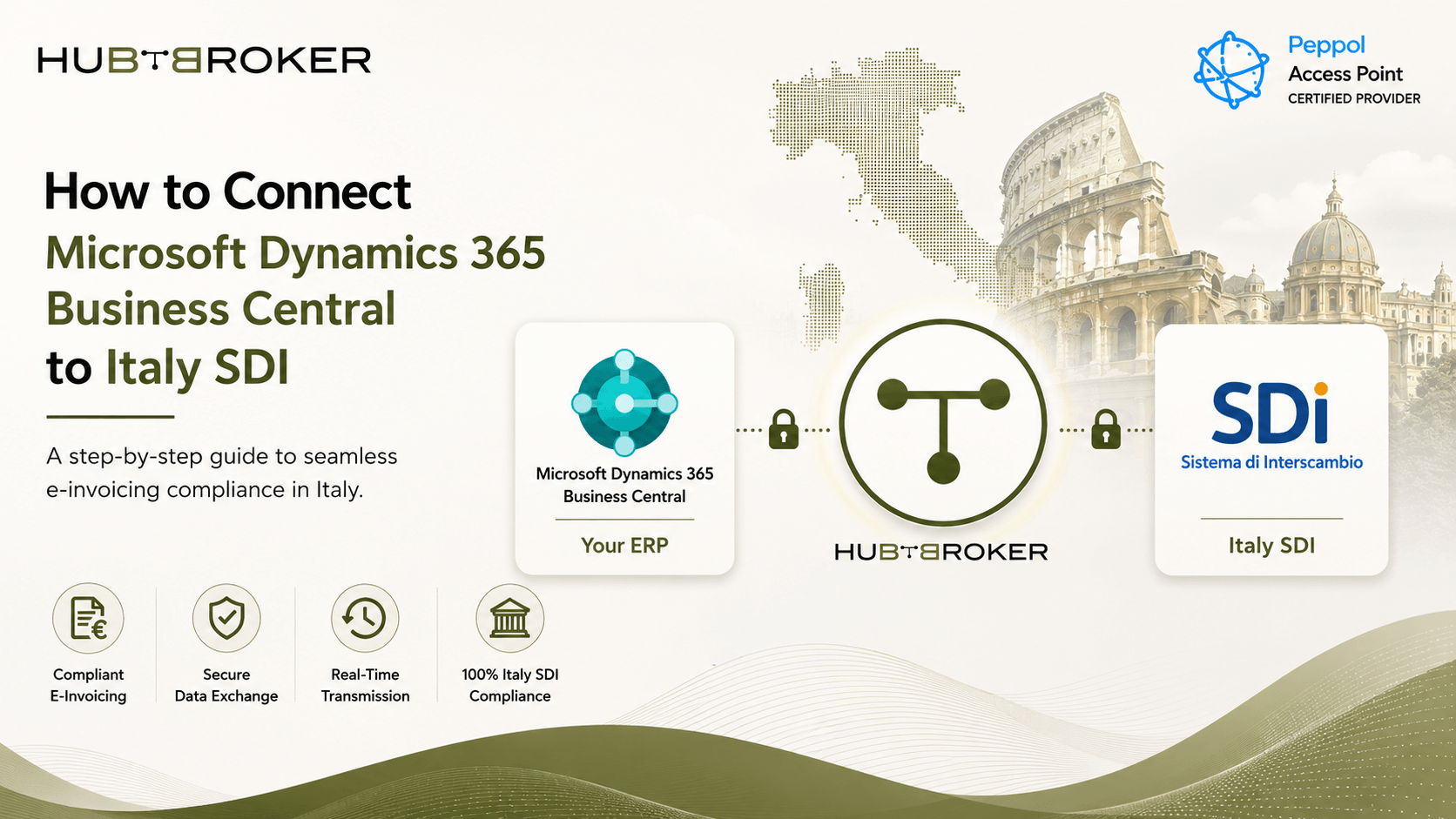
How to Connect Microsoft Dynamics 365 Business Central to Italy SDI
For companies using Microsoft Dynamics 365 Business Central in Italy, creating the invoice inside ERP is only one part of the process. The invoice also need to be prepared in the correct electronic format, sent through the Sistema di Interscambio (SDI) and then checked for delivery or rejection.
A proper Business Central SDI integration connects all these steps together, so Finance team do not have to manage XML files, portal uploads and invoice status separately.
What Is Business Central SDI Integration?
Business Central SDI integration connects Microsoft Dynamics 365 Business Central with Italy's SDI electronic invoicing system. The integration takes invoice data from Business Central, converts it into the required FatturaPA/XML format, sends it through the selected SDI channel and brings the related response back into the business process.
Microsoft's Italian Business Central localization already includes FatturaPA electronic invoicing functions and supports exporting electronic invoice data into XML. But businesses still need a proper process for sending the invoice, tracking the response and handling rejected invoices.
Why Does Business Central Need to Connect With Italy's SDI?
For Italian e-invoicing, simply posting the invoice inside Business Central is not enough. Electronic invoices need to be sent through SDI, and the invoice file submitted to SDI is XML rather than a normal PDF invoice.
SDI checks different details before processing the invoice, such as:
Required invoice information
Supplier and customer tax details
Recipient information
Invoice structure
Duplicate invoice files
If something is wrong, SDI can reject the invoice and provide a rejection message with the reason. This means Finance and IT teams need to manage both invoice creation and the complete SDI invoice status.
How Does Business Central SDI Integration Work?
A normal outgoing invoice flow can look like this:
 The basic process is:
Business Central creates and posts the sales invoice.
The integration collects the required invoice and customer data.
Invoice data is mapped into the correct FatturaPA/XML format.
The XML file is checked before sending.
The invoice is sent to SDI through the configured provider or channel.
SDI checks the invoice and sends it to the customer.
Delivery, rejection or other status information comes back to the integration.
This status can then be connected with the related Business Central invoice, so Finance team can easily see what happened. For incoming invoices, the process works in the other direction. Invoices received through SDI can be collected, mapped to Business Central purchasing data and then sent for review or posting.
What Are the Main Ways to Connect Business Central With SDI?
Businesses normally have few different options for connecting Business Central with SDI.
✔ Manual process
Businesses can create or export the XML invoice and upload it using available SDI services. This can work for very low invoice volume, but it becomes difficult when invoice numbers start increasing.
✔ Custom or direct integration
A company can build its own SDI integration internally. This gives more control, but IT team need to manage mapping, errors, monitoring and future changes.
✔ Middleware or integration platform
An integration platform can connect Business Central with SDI and handle data conversion, validation, invoice sending and status updates. This reduce the amount of custom work inside Business Central.
✔ Managed integration
Businesses can also use an integration provider to handle the technical connection and invoice exchange process. The best option depends on invoice volume, internal IT resources and how much manual work your team want to manage.
What Challenges Can Businesses Face With Direct SDI Integration?
The main challenge is not only creating the XML file. The complete process also need to stay reliable after the invoice is sent.
Some common problems include:
➡ Wrong invoice field mapping
➡ Missing customer or VAT information
➡ XML validation errors
➡ Rejected invoices
➡ Duplicate invoice files
➡ Poor invoice status visibility
➡ Wrong ERP status after rejection
➡ Manual correction and resending
➡ Changes in FatturaPA requirements
For example, Business Central may show an invoice as posted, while SDI has already rejected the same invoice. If Finance team cannot easily see this status, payment may get delayed while IT team is trying to find the error separately.
What Should You Look for in a Business Central SDI Integration Solution?
A good integration should support the complete invoice flow, not just XML generation.
Important features can include:
Automatic Business Central invoice extraction
Invoice field mapping
FatturaPA/XML conversion
Validation before sending
Secure SDI invoice transmission
Rejection and error handling
SDI status updates
Incoming invoice support
Invoice monitoring
Audit trail
Controlled invoice reprocessing
The main goal should be simple: Finance team should continue working mainly inside Business Central, while the integration handles the technical SDI process in the background.
How Can an Integration Platform Simplify Business Central SDI Connectivity?
An integration platform keeps most SDI-specific technical work outside the main ERP process. It can automatically collect invoice data from Business Central, convert it into FatturaPA XML, validate the information, send it to SDI and process the response. This is better than having several manual XML steps or many separate scripts that IT team need to maintain.
For Finance, it gives better invoice status visibility. For IT, it can reduce custom development and provide one place for checking errors, mappings and invoice flows. HubBroker provides Microsoft Dynamics 365 Business Central integration together with ERP integration and e-invoicing capabilities, which can help companies manage these processes from one integration setup.
Getting Started With Business Central SDI Integration
Start by checking your current invoice flow and what happen after an invoice is posted in Business Central.
Businesses should review:
✔ Outgoing invoice process
✔ Incoming invoice process
✔ FatturaPA data requirements
✔ Customer and VAT master data
✔ SDI response handling
✔ Rejected invoice process
✔ Invoice status updates
✔ Integration monitoring
It is also important to decide who will handle rejected invoices. Finance may need to correct business information, while IT may need to fix mapping or technical errors. If your company is looking for a managed setup, HubBroker can help connect Business Central with Italy SDI and automate invoice mapping, validation, sending and status handling.
Talk to HubBroker about connecting Microsoft Dynamics 365 Business Central with Italy SDI and making your e-invoicing process more simple.
