
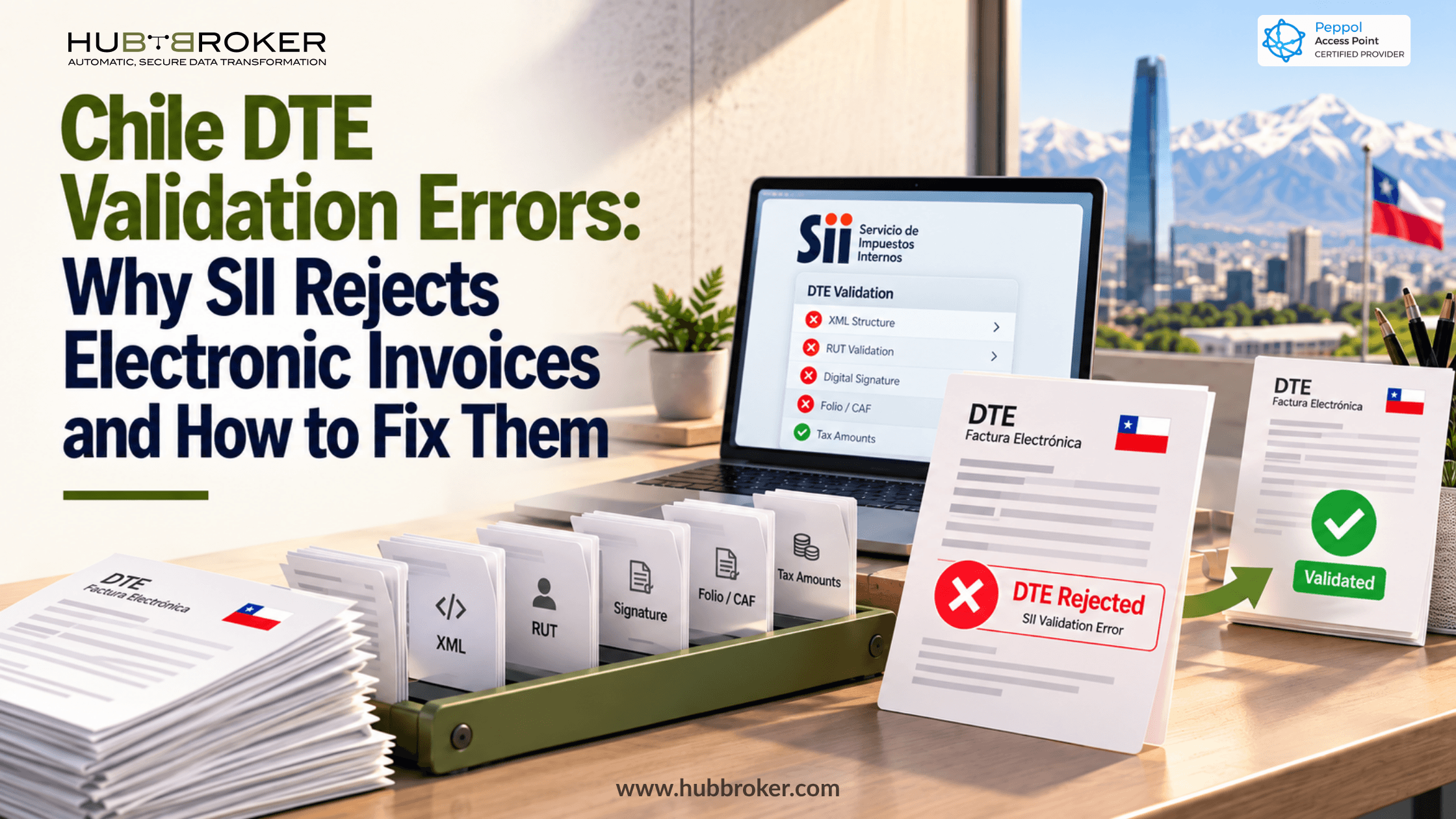
Chile DTE Validation Errors Why SII Rejects Electronic Invoices and How to Fix Them
Your team sends an invoice, but the customer says it never arrived properly. The ERP shows “sent,” while the tax system shows something else. This can delay payments and leave staff checking the same document again. Businesses in Santiago, Valparaíso, and other parts of Chile face this problem when electronic invoices fail checks. Chile DTE validation errors often come from invoice data or technical settings, not just a broken connection. The useful question is what the SII actually rejected.
Why Does SII Reject Electronic Invoices in Chile?
Chile's Servicio de Impuestos Internos (SII) checks each Documento Tributario Electrónico (DTE) against rules covering file structure, tax details, signatures, and authorized folios. A document may fail because its XML is incorrect, the sender lacks authorization, or its security information cannot be verified.
There is also a difference between a rejected submission and a rejected invoice. One batch can hold several DTEs, and they may not all get the same result. A receipt showing that the file reached the system does not prove that each invoice was accepted. Keep the official SII response linked to the matching ERP record. This matters when a customer sees an invoice your sales system calls complete.
What Are Common Chile DTE Validation Errors?
Some problems start with customer details. Others come from certificates or how the software creates the electronic file. Instead of guessing, use the SII message to narrow down what needs checking.
Error area | Possible problem | What to review |
|---|---|---|
XML format | Incorrect file structure | Fields and schema |
Digital signature | Signature fails verification | Certificate and signed XML |
Sender details | Issuer not authorized | RUT and permissions |
Customer RUT | Wrong buyer information | Customer record |
Folio or CAF | Folio authorization problem | Folio and CAF |
Tax amounts | Figures do not match | Net, VAT, totals |
Electronic stamp | Invalid timbre information | Stamp data and creation |
These are areas to investigate, not official rejection codes. Always read the actual response before editing anything. Make a note of whether the issue came from the original customer data, a software setting, or the document itself. That helps stop the same mistake from happening again.
How Can Businesses Fix Rejected DTE Invoices in Seven Steps?
Resending immediately can make the situation harder to track. Give staff a clear order to follow, especially when one batch contains several invoices.
Step 1: Find the response. Open the SII submission result. Identify the batch and the individual DTE involved.
Step 2: Check its status. Separate a failed submission, a rejected DTE, and an accepted DTE with observations.
Step 3: Save the evidence. Keep the folio, document type, XML, and full SII message together.
Step 4: Review invoice details. Check RUT numbers, dates, amounts, tax fields, and references for mistakes.
Step 5: Check technical details. Review the XML schema, electronic signature, authorized folio, and timbre generation.
Step 6: Choose the right fix. Correct and resend rejected documents. For accepted documents needing changes, assess whether a credit or debit note is appropriate.
Step 7: Confirm the result. Check the latest SII response and update the ERP with the verified status.
Does Accepted With Reparos Mean a DTE Was Rejected?
No. A DTE accepted with reparos remains valid and stored by SII. A reparo is an observation that the issuer should examine, rather than proof of rejection. SII has described observations involving older CAF authorizations. Depending on the issue, a credit or debit note might be needed, but another invoice is not automatically the answer. A customer can also dispute an invoice after SII accepts it. Perhaps the quantity or price is wrong. That business disagreement is separate from tax validation. Keep both workflows distinct so nobody resends an accepted document unnecessarily.
What Should Chilean Businesses Check Before Choosing DTE Software?
Ask the provider to show readable errors, individual document statuses, an audit history, and checks before invoices go out. Confirm how it supports Chilean DTE requirements, certificates, folios, and future rule changes. Test real cases, including rejections, reparos, and temporary connection problems.
Staff should know who takes action when an invoice fails late on Friday.
➡ Can accounting fix the buyer record?
➡ Does IT need to inspect the XML?
➡ Is an SII result still pending?
A useful system shows the full history, not just a green “sent” label.
HubBroker offers ERP integration, document mapping, validation, and transaction monitoring services that can help reduce repeated typing and make document problems easier to follow. Chilean businesses can review how these services fit their current DTE software and SII workflow. Confirm any country-specific connection or approval before implementation; general integration features alone do not establish tax compliance.
Ask for a demonstration using one accepted invoice and one failed invoice from your own process, so the team can see the difference clearly.
